Portal Configuration FAQ
What is the difference between a one-way and a two-way external portal?
Your organization can use your external portal's online form to both receive case information from reporters and provide updates to them.
- A one-way external portal only allows reporters to submit cases. They cannot receive updates on their case via Case IQ.
- A two-way external portal allows reporters to set up an account for your external portal, so they can log back into the external portal and see updates on their case.
What happens when you deactivate a portal or switch it to one-way?
If you deactivate your portal:
- Reporters will no longer be able to access your portal or submit cases.
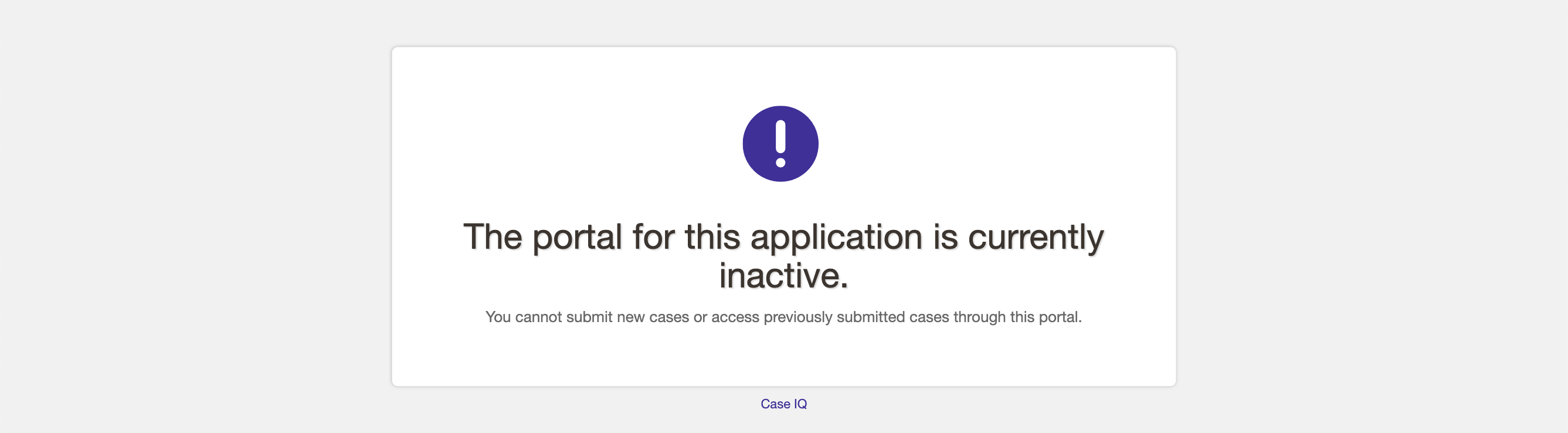
- The link to your portal will load a blank page that explains that the portal is not active, shown in the screenshot below. You can customize the text on this page, see instructions for the external portal and internal portal.
If you switch your external portal from two- to one-way:
- Any reporters who set up an account with an email address will receive an email letting them know that they cannot access or receive updates on their case anymore. You can customize the notification sent to reporters, see the Change Inactive Portal Default Text section for details.
- In the main version of your application, a banner will be displayed on external cases (i.e. cases originally submitted via a portal), informing internal users that the reporter no longer has access to the case.
What's the difference between an internal and external portal?
Both types of portals have the same reporting functionality and interfaces. However, each portal was designed for a different audience. Since an internal portal is intended for your employees, reporters must log in to your internal portal with Single Sign On (SSO) before they can submit a case. On the other hand, an external portal is meant to be as broadly available as possible, so anyone can access and submit cases with an external portal.
| External Portal | Internal Portal |
|---|---|
| Anyone can access and submit cases with the link to your external portal landing page. |
Reporters must log in to your internal portal with your organization's SSO before they can submit a case. |
|
External portals can be one- or two-way, meaning your organization can use your external portal's online form to both receive case information from reporters and provide updates to them.
|
Internal portals are always two-way. Reporters will be able to log in with SSO, so they do not need to set up an account to receive updates on cases they submitted online. |
| Reporters must enter their name if they choose to identify themselves when submitting a case online. They can choose to remain anonymous if the external portal is configured to allow anonymous reporting. |
Reporters do not need to enter their name if they choose to identify themselves when submitting a case online. The system will auto-populate their first and last name when they submit a case. They can choose to remain anonymous if the internal portal is configured to allow anonymous reporting. |
| Reporters must agree to the Terms and Conditions when reporting online. |
The Terms and Conditions pop-up will not be displayed when reporting online. |
Can I deactivate the online form on the external or internal portal?
You cannot remove the online reporting option from your external or internal portal. If your organization is no longer accepting online reports, you can deactivate your external or internal portal.
Do I need to manage external or internal portal user accounts?
System administrators do not need to manage external accounts, as Case IQ automatically handles external account management. External accounts:
- Do not appear on the User Profiles page, nor will they be visible anywhere in the application. If the reporter chose to identify themselves, their information will appear in the “Reporter” party created for the case.
- Do not count towards an application’s user account limits.
- Will be automatically deactivated after a set number of days of inactivity (by default 90 days). If an external portal reporter made their account using an email address, they will be notified in advance of their account’s deactivation.
How can I ensure external reporters provide their contact information? Our organization is required to contact reporters
We recommend using the following settings for your external portal, which will ensure that reporters provide their email address when they submit a case via the external portal intake form.
- Turn off the "Allow Anonymous Submissions" toggle.
- Set the "Reporter Access to Submitted Cases" setting to "Two-Way".
- Set the "Reporter Update Option" setting to "Is mandatory".

What do the portal settings on the Options and Translations pages do?
In addition to the External Portal Configuration and Internal Portal Configuration page, you can manage your portals' settings from the Options page (Settings > System > System > Options) and Translations page (Settings > Data > Translations). If you update settings on the External or Internal Portal Configuration pages, your changes will be synced to the Options and Translations pages and vice versa. All related settings in Options and Translations will be locked when your changes are pending on the External Portal Configuration or Internal Portal Configuration page to prevent overwrites. We recommend using the External and Internal Portal Configuration pages to manage your portal's settings for ease of use.